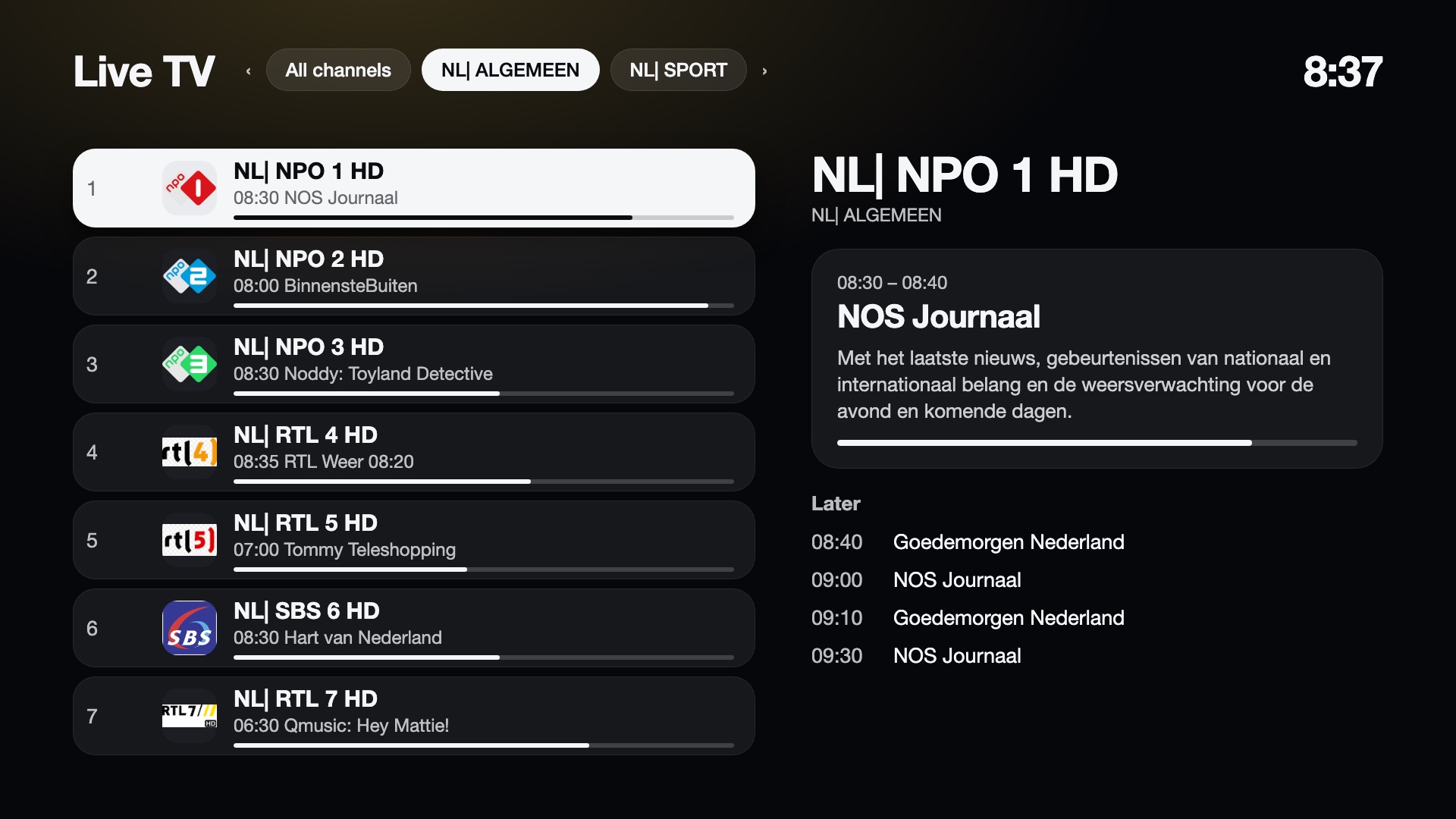
Live TV
Plays an IPTV playlist (M3U) from your own provider or server. It does not use LG's tuner, and the project provides no channels and no playlist.
Setting it up
On first use the screen shows an address and a 6-digit code.
- Open the address on a phone or computer on the same network as the TV.
- Enter the code.
- Paste your M3U playlist address (and the XMLTV guide address if the playlist does not carry one).
The page closes by itself. It is open for ten minutes at most and only with the code.
From a shell on the TV instead:
curl -X POST localhost:8765/api/live/settings -d '{"playlistUrl":"http://...","epgUrl":"http://..."}'
Turning it off
Live TV is optional. In the manager app, Live TV > Show Live TV switches it on and off. Off hides it everywhere: the Live TV button and tile in the launcher, Live TV in the Inputs list, and the Guide key takeover (below). LG's own player and guide are used as before. The playlist and your favourites are kept, so switching it on again brings them back.
Keys
| Key | Watching | In the guide (OK) |
|---|---|---|
| Up / Down, CH+ / CH- | Next / previous channel | Move; CH+ / CH- page |
| Left / Right | Channel banner (now and next) | Previous / next tab |
| Digits | Jump to a channel number (playlist order) | Same |
| OK | Open the guide | Play the channel |
| Guide | Open the guide | Close the guide |
| Green | Add / remove favourite | Add / remove favourite |
| Yellow | Player menu (favourite, stream, statistics) | Filters |
| Blue | Statistics | |
| Red | Search (the TV's keyboard) | |
| Back | Return to the launcher | Clear filters and search, then close the guide |
The tabs are All channels, Favourites, Recent and one per category of your playlist. Channels show badges for country,
language and quality when the playlist names them (for example NL, EN, HD). Filters narrow the list by country, language and
quality; search matches names across all channels.
The Guide button
By default the remote's Guide button belongs to LG. In the manager app, Live TV > Learn the Guide key records the button's code; afterwards it opens the Live TV channel guide over whatever is running, and closes it again when Live TV is open. Clear gives LG's guide back. The button is only taken over while Live TV is on and a code is learned. It uses the same hook as the Input key.
How it plays
- The TV's own player plays HLS (
.m3u8). - Stepping through channels with Up/Down starts the new channel only when the keys have paused for 180 ms. Channels you skip are never requested from your provider, which matters for accounts that allow one connection.
- The player uses one video element for the whole session instead of creating one per channel.
- The guide (XMLTV) is refreshed twice a day and keeps 36 hours.
- The guide address can be an
.xmlor.xml.gzfile. When the field is empty, the address in the playlist (url-tvgorx-tvg-url) is used; for an Xtream playlist (…/get.php?username=…&password=…) it is the provider'sxmltv.phpon the same server. - A playlist channel gets its programmes from the guide channel with the same
tvg-id. When there is none, the channel's name is compared with the guide channel's names, ignoring case, accents, a leading country code (PL:,NL|), quality words (HD,FHD,4K) and punctuation, soPL: TVP 1 HDmatchesTVP 1. - An Xtream link ending in
.ts(…/live/<user>/<password>/<id>.ts) is played as it is first. The provider's HLS (.m3u8) and a.tsmarked as HLS are tried after it, because on webOS 5 and 6 they can stall for 15 seconds before the next try starts. - When a playlist lists the same channel in several qualities (for example
HDandSD), they are merged into one channel with several streams. If one does not start, the next is tried; a stream that stalls is reloaded once. - When a channel does not play, the screen says why: the server refused it, the stream is gone, it needs DRM, it is not video, or it is too slow.
- Statistics (Blue) show the resolution, buffer, dropped frames and which stream is playing.
There is no recording and no pause.
Where it is stored
The playlist address, which usually contains an access key, is stored only on the TV, in
/media/developer/cleanyourtv/live/, readable by root only. To clear it:
Favourites, recent channels and the failed-channel list are stored in state.json in the same folder.